

Submit Dashboard
The Submit Dashboard is the entry point for all job submissions. It displays available applications as a grid of cards grouped by category.
Keyboard shortcut: g0
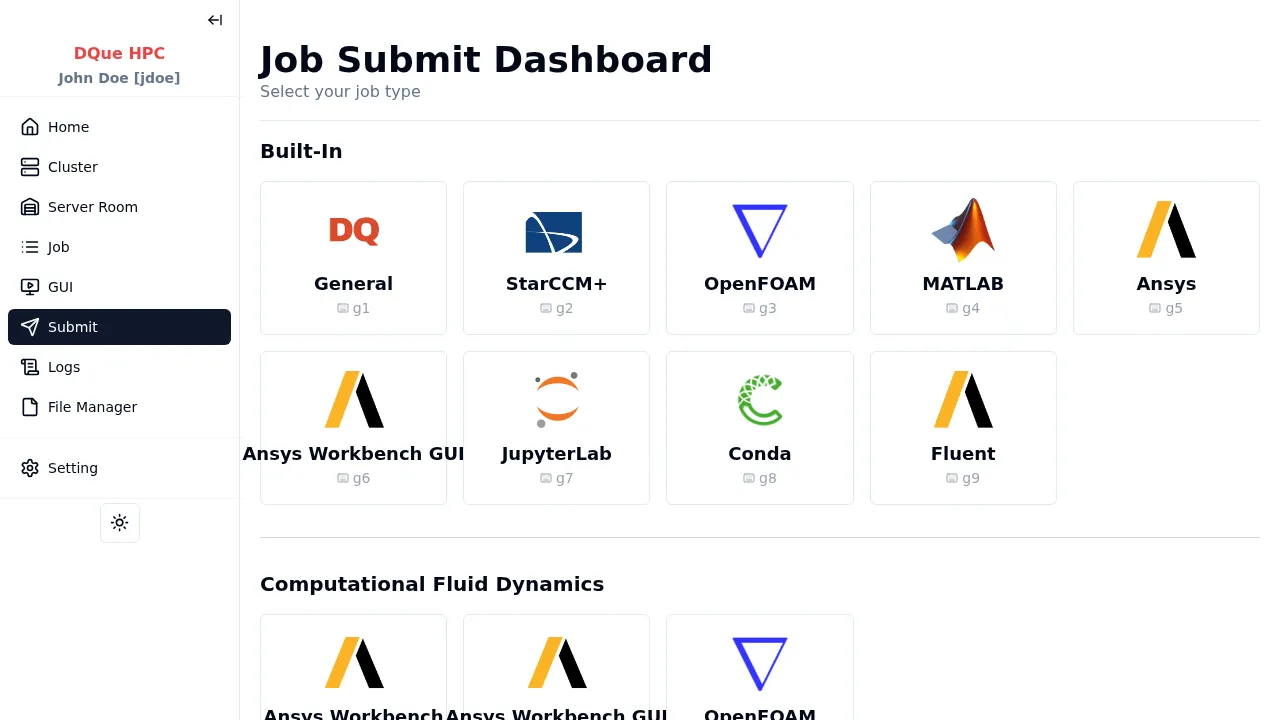
- Built-in apps — cards for enabled applications (General, MATLAB, StarCCM+, etc.).
- Plugin apps — cards for admin and user plugins. User plugins show a Personal badge.
- Categories — cards are grouped by category (Built-in, Development, Simulation, etc.) with dividers.
- Shortcuts — each card shows its keyboard shortcut (e.g.,
g1,g2, …).
Click a card to navigate to that application’s submission form.
Available Applications
Section titled “Available Applications”- General Jobs: Run arbitrary commands natively or in containers.
- JupyterLab: Launch JupyterLab sessions as batch jobs.
- MATLAB: Run MATLAB scripts or launch the MATLAB GUI.
- StarCCM+: Submit StarCCM+ simulations with GUI collaboration.
- Plugin Apps: Plugin-defined application forms.
- Apptainer Builder: Build container images from Docker or definition files.
- CodeServer: VS Code in your browser.
- Web Terminal: Browser-based terminal session.
- Conda: Run commands in a Conda environment.
- OpenFOAM: Submit OpenFOAM CFD jobs.
- ANSYS Workbench Batch: Submit ANSYS Workbench batch jobs.
- ANSYS Workbench GUI: Launch the ANSYS Workbench graphical interface via VNC.
- CFX: Submit ANSYS CFX CFD solver jobs.
- Fluent: Submit ANSYS Fluent CFD solver jobs.
Common SLURM Parameters
Section titled “Common SLURM Parameters”Every job submission page includes a Job Scheduler Options section. The fields are split into a basic section (always visible) and an Advanced Options collapsible section. Which fields are basic vs. advanced depends on the specific application.
Basic Fields (default set — apps may promote additional fields):
| Field | Description |
|---|---|
| Partition | SLURM partition to submit to (required) |
| Job Name | Name for the job (required). Spaces are replaced with underscores. Determines the working directory. |
| Working Directory | Auto-derived as <jobRoot>/<appType>/<jobName>. Read-only. A folder icon links to the File Manager if the directory exists. |
| CPUs per Task | CPUs per task, typically for OpenMP threads (≥ 1) |
Additional Fields (basic or advanced depending on the app):
| Field | Description |
|---|---|
| Exclusive Node Access | If enabled, the job cannot share nodes with other jobs |
| Number of Nodes | Minimum number of nodes to allocate (≥ 1) |
| Number of Tasks per Node | Tasks per node, typically for MPI ranks (≥ 1) |
| Number of Tasks | Total number of tasks (≥ 1) |
| Memory | Memory per node (e.g., 32G, 4096M) |
| GPU Model | Select from available GPU models on the cluster (only shown if cluster has GPUs) |
| GPUs per Node | Number of GPUs per node (only shown if cluster has GPUs) |
| Wall Time | Time limit in HH:MM:SS format |
| Account | SLURM account to charge (only shown if SLURM accounting is enabled) |
| QoS | Quality of Service level (only shown if SLURM accounting is enabled) |
| Mail-User | Email address for job notifications |
| Mail-Type | When to send email: BEGIN, END, FAIL, or ALL |
Note: If your user account is not registered in the SLURM accounting database, an alert is shown and the submit button is disabled. Contact your admin to resolve this.
Job Submission Tabs
Section titled “Job Submission Tabs”Every submission page is organized into tabs:
- New Job — configure and submit the job using the parameter forms.
- Batch Script — view and edit the generated SLURM batch script before submitting. You can modify the script directly and submit it as-is.
- Setting (admin only) — per-app configuration panel, visible only to the root user.
Templates
Section titled “Templates”The Template system lets you save and reuse job submission parameters. Available on General, OpenFOAM, and Conda submission pages.
- Fill in your desired command on a submission page.
- Click the template button next to the Command field.
- In the Template dialog, click New to save the current command as a named template.
- Later, select a saved template to pre-fill the command field.
- Templates can be renamed and deleted from the dialog.
Templates are stored per-user and persist across sessions.