

ANSYS Workbench GUI
Launch the ANSYS Workbench graphical interface via VNC as a SLURM batch job.
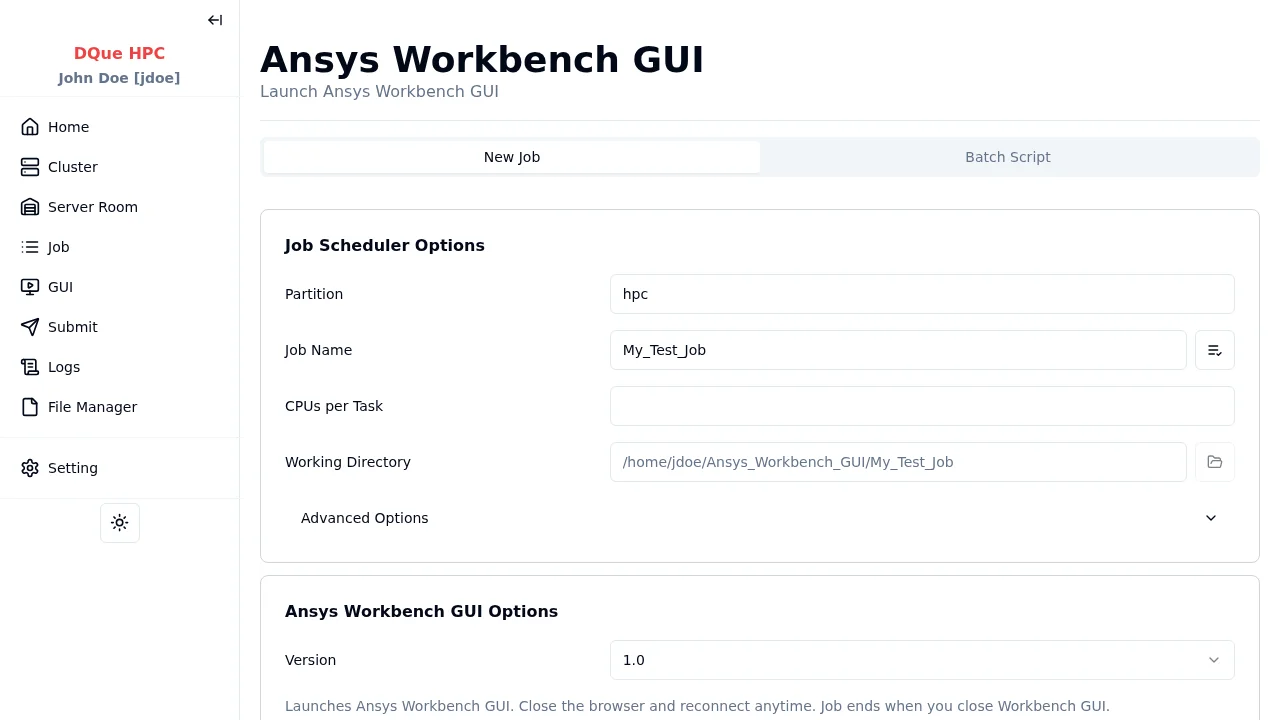
Step 1: Job Scheduler Options
Section titled “Step 1: Job Scheduler Options”- Partition — select the partition.
- Job Name — assign a name.
- CPUs per Task — specify CPU cores.
- Working Directory — your working directory for Workbench projects.
Step 2: ANSYS Workbench GUI Options
Section titled “Step 2: ANSYS Workbench GUI Options”- Version — select the ANSYS version.
Note: The job ends when you close the Workbench application inside the GUI. No additional files are needed.
Step 3: Submit
Section titled “Step 3: Submit”Click Submit to launch the Workbench GUI as a SLURM batch job.
Accessing Workbench via Browser
Section titled “Accessing Workbench via Browser”- Once the job is running, navigate to the GUI Sessions page.
- Find your session under GUI Jobs and click Connect.
- The ANSYS Workbench desktop opens in your browser through noVNC.
Close the browser tab and reconnect anytime from the GUI Sessions page. The job continues until you close Workbench inside the GUI.