

File Manager
The File Manager provides a browser-based file explorer for your HPC home directory and allowed paths.
Keyboard shortcut: gf
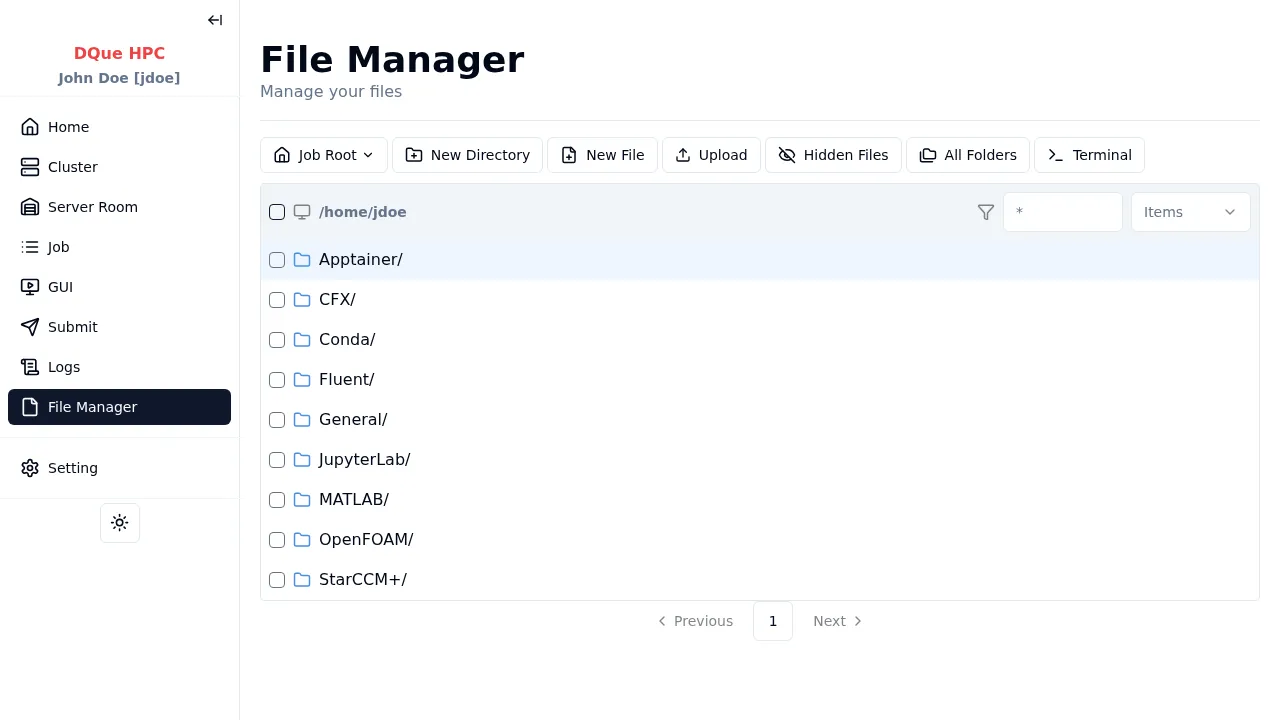
Features
Section titled “Features”| Action | How |
|---|---|
| Navigate | Click folders in the file list or use the breadcrumb path |
| Upload files | Use the upload button in the toolbar |
| Download files | Select a file and click download |
| Create directory | Use the create folder button in the toolbar |
| Delete | Select files/folders and click delete |
| Rename | Right-click or use the rename action |
Integrated Terminal
Section titled “Integrated Terminal”If enabled by the admin, a Terminal button appears in the toolbar. Clicking it opens a resizable terminal drawer at the bottom of the page, opened in the current directory.
- Resize — drag the handle between the file list and terminal.
- Maximize/Minimize — use the buttons on the terminal header.
- Close — click the close button to hide the terminal.
You can navigate to a specific path by adding ?path=/home/jdoe/mydir to the URL.