

ANSYS Workbench Batch
Submit ANSYS Workbench batch jobs for Mechanical, Fluent, CFX, and other ANSYS workbench-based simulations.
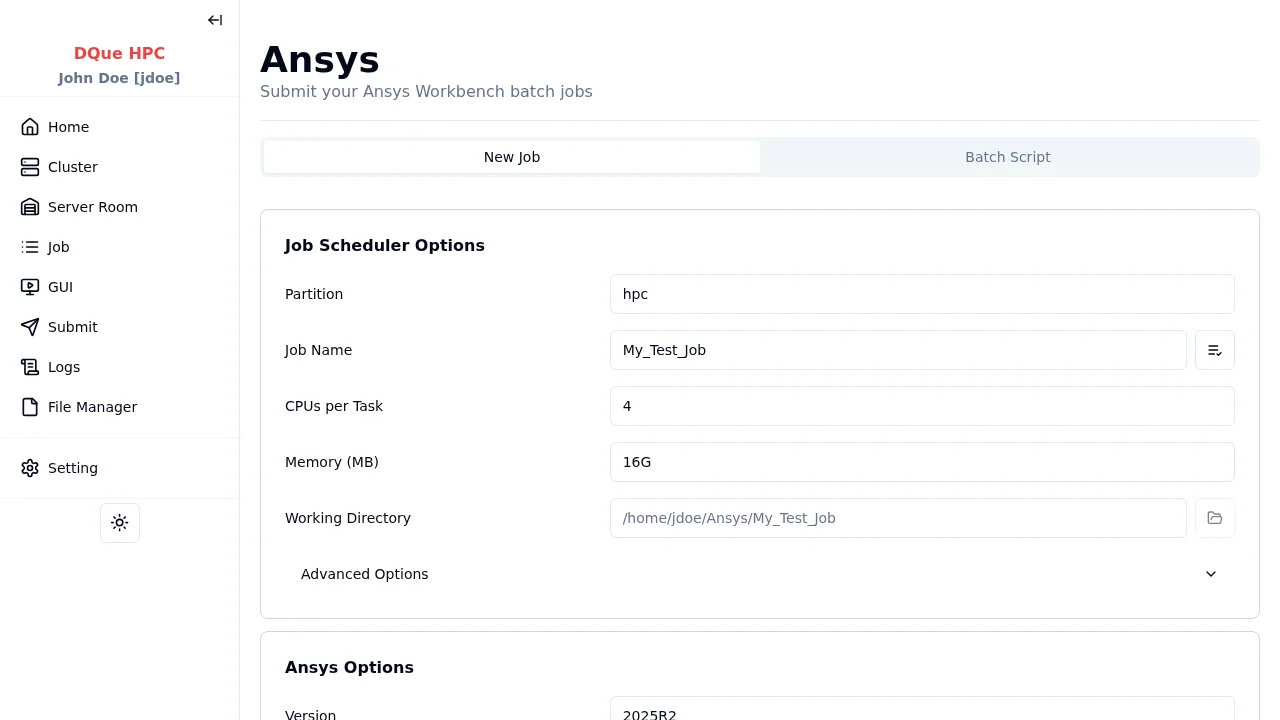
Step 1: Job Scheduler Options
Section titled “Step 1: Job Scheduler Options”- Partition — select the partition.
- Job Name — assign a name.
- CPUs per Task — specify CPU cores.
- Working Directory — where simulation files are located.
Step 2: ANSYS Options
Section titled “Step 2: ANSYS Options”- Version — select the ANSYS version from available installations.
Step 3: ANSYS Workbench Files
Section titled “Step 3: ANSYS Workbench Files”| Field | Description |
|---|---|
| Project File (.wbpj) | Path to the Workbench project file (required). Use the Select button to browse for .wbpj files in your working directory. |
| Journal File (.wbjn) | Path to the Workbench journal file (required). Use the Select button to browse for .wbjn files. Preset journals configured by your admin also appear in the selector — when selected, the preset file is automatically copied to your working directory before submission. |
Step 4: Submit
Section titled “Step 4: Submit”- Click Submit to start the ANSYS batch job.
- Monitor the job on the Job Monitor page.