

Fluent
Submit ANSYS Fluent CFD solver jobs. This app promotes multi-node fields to the basic section.
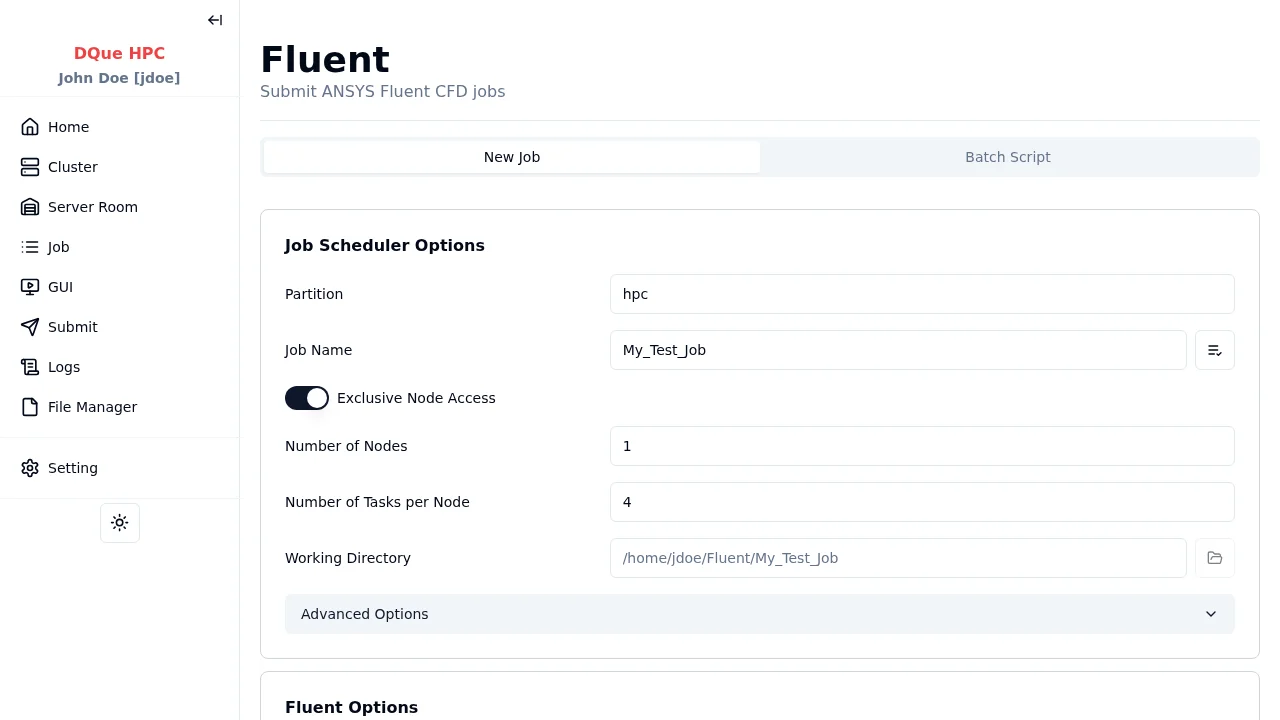
Step 1: Job Scheduler Options
Section titled “Step 1: Job Scheduler Options”- Partition — select the partition.
- Job Name — assign a name.
- Exclusive Node Access — typically enabled for MPI jobs.
- Number of Nodes — specify the number of compute nodes.
- Number of Tasks per Node — Fluent processes per node.
- Working Directory — where journal files are located.
Step 2: Fluent Options
Section titled “Step 2: Fluent Options”- Version — select the Fluent version.
- Solver Dimension — select the solver type:
- 3D Double Precision
- 3D Single Precision
- 2D Double Precision
- 2D Single Precision
- Enable Web UI — check to enable the browser-based Fluent interface (available in Fluent 2024 R1 and later).
Step 3: Fluent Job Files
Section titled “Step 3: Fluent Job Files”| Field | Description |
|---|---|
| Journal File (.jou) | Path to the Fluent journal file (required). Use the Select button to browse for .jou files. |
Step 4: Submit
Section titled “Step 4: Submit”Click Submit to send the Fluent job to the SLURM scheduler.
Accessing Fluent Web UI
Section titled “Accessing Fluent Web UI”When Enable Web UI is checked:
- Once the job is running, navigate to the GUI Sessions page.
- Find your Fluent session and click Connect.
- The Fluent web interface opens in a new browser tab with automatic token authentication.