

MATLAB
Submit MATLAB jobs to the SLURM scheduler, either running a script in batch mode or launching the interactive MATLAB GUI.
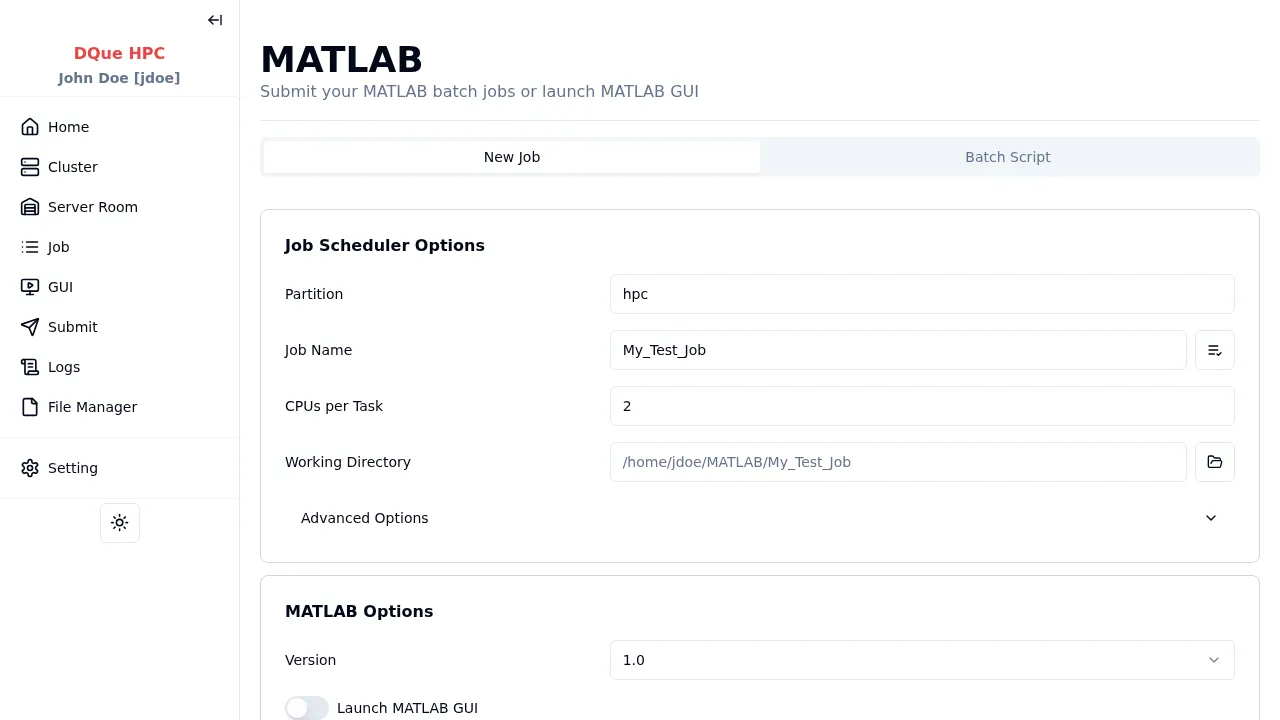
Step 1: Job Scheduler Options
Section titled “Step 1: Job Scheduler Options”- Partition — select the partition (e.g.,
hpc). - Job Name — assign a name (e.g.,
My_Test_Job). - CPUs per Task — number of CPU cores (e.g.,
2). - Memory — memory per node (e.g.,
4G). - Working Directory — where MATLAB runs and resolves script paths.
Step 2: MATLAB Options
Section titled “Step 2: MATLAB Options”- Version — select the MATLAB version (e.g.,
R2024a). Available versions are configured by your admin. - Launch MATLAB GUI — toggle between batch mode and GUI mode.
Batch mode (GUI off):
- MATLAB Script — path to the
.mscript file (required). Use the Select button to browse for.mfiles in your working directory. - The job runs
matlab -nodisplay -nodesktop -nosplash < script.mas a headless batch job.
GUI mode (GUI on):
- No script file is needed. MATLAB desktop is launched via VNC.
Step 3: Submit
Section titled “Step 3: Submit”Click Submit to send the job to the SLURM scheduler.
Accessing MATLAB GUI via Browser
Section titled “Accessing MATLAB GUI via Browser”When using GUI mode:
- Once the job is running, navigate to the GUI Sessions page.
- Find your MATLAB session under GUI Jobs and click Connect.
- The MATLAB desktop opens in your browser through noVNC.
No local MATLAB installation is required. Computations run on the cluster using your allocated resources. You can access the session from any device with a browser. Close the browser tab and reconnect anytime — the MATLAB session persists until the job ends.