

My Plugins
Create and manage your personal job submission plugins. User plugins appear on the Submit Dashboard with a Personal badge and are only visible to you.
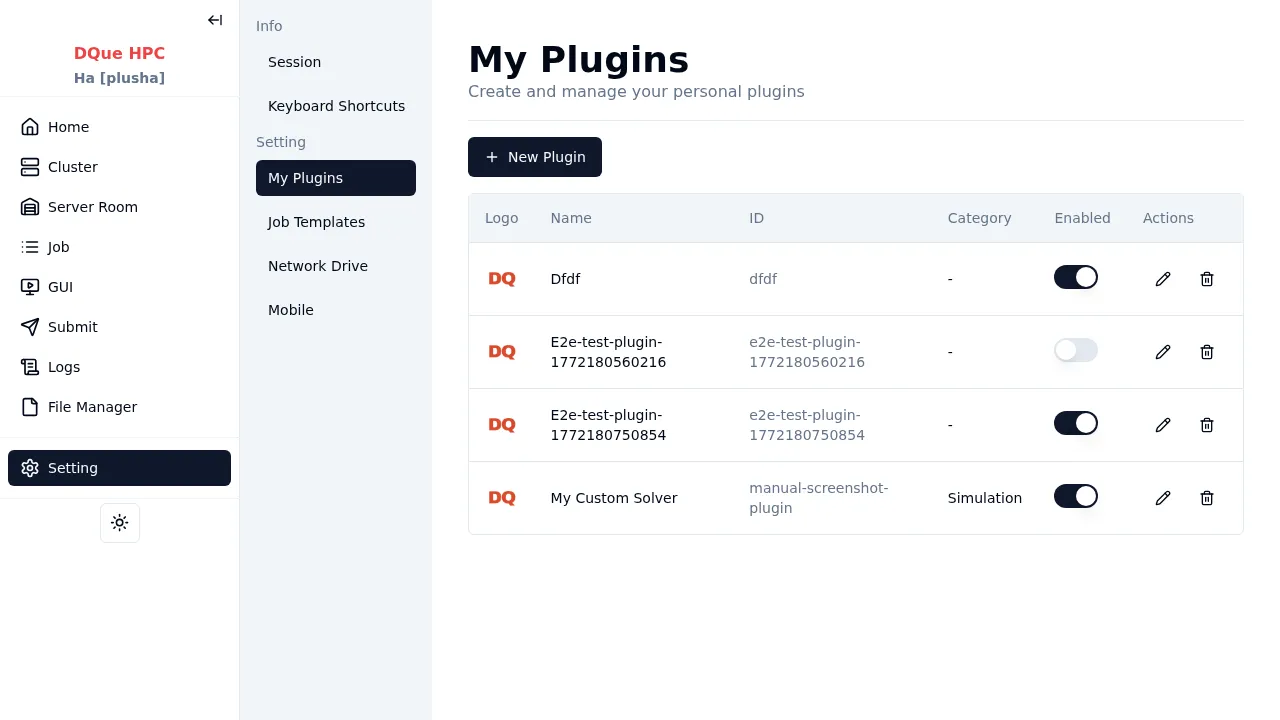
Creating a User Plugin
Section titled “Creating a User Plugin”- Navigate to Setting > My Plugins (
/setting/plugins). - Click the New Plugin button.
- Enter a Plugin ID — lowercase alphanumeric characters, hyphens, and underscores (1–64 characters).
- Click Create. You are redirected to the plugin editor.
The plugin editor has the same 8 tabs as the admin editor: Basic Info, SLURM, Execution, Container, Parameters, Script, Groups, and Preview. See the Plugin Guide for a walkthrough of each tab.
Where User Plugins Appear
Section titled “Where User Plugins Appear”Once enabled, user plugins appear on the Submit dashboard alongside admin plugins, marked with a Personal badge.
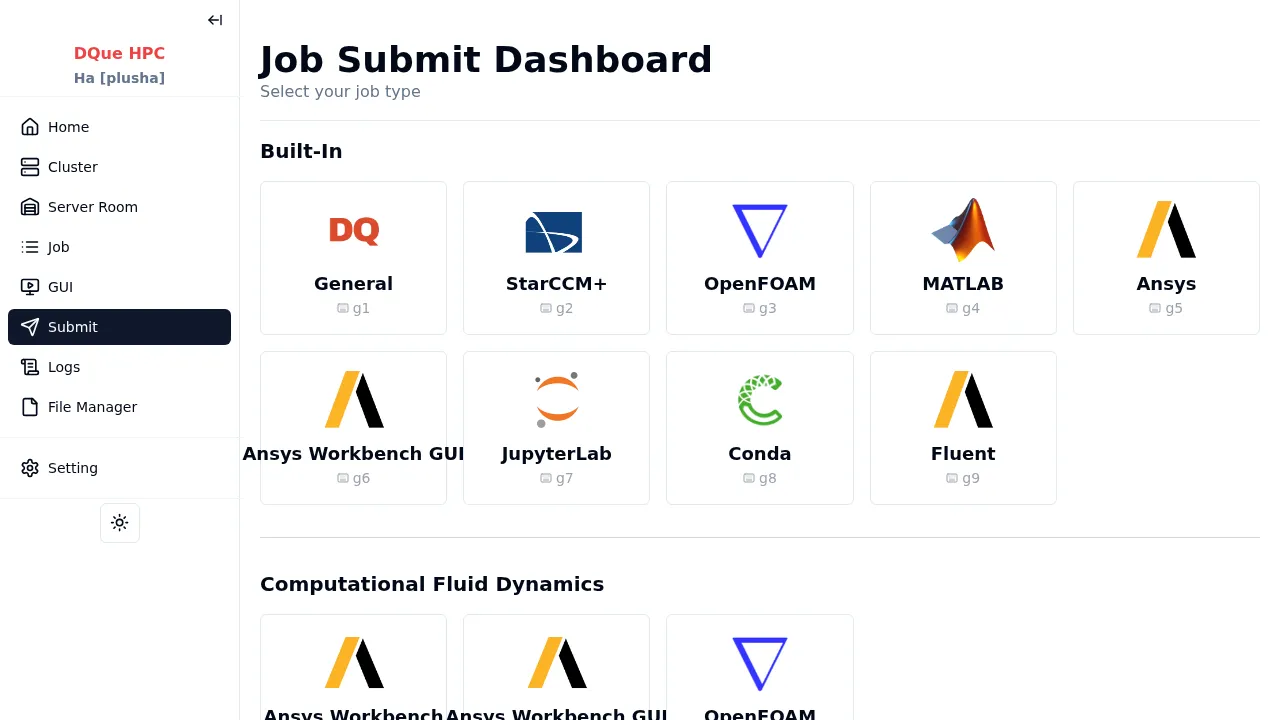
Clicking a user plugin navigates to the standard job submission page at /job/submit/plugin/<plugin-id>.
Storage Location
Section titled “Storage Location”User plugin files are stored in your home directory:
~/.config/dque/plugins/<plugin-id>/├── plugin.json # Plugin definition└── logo.png # Optional logoDifferences from Admin Plugins
Section titled “Differences from Admin Plugins”| Feature | Admin Plugins | User Plugins |
|---|---|---|
| Created by | Admins via /admin/plugins | Users via /setting/plugins |
| Visible to | All users | Only the creator |
| Storage | config/plugins/ | ~/.config/dque/plugins/ |
| Reset to default | Yes | No |
| Badge on Submit Dashboard | None | Personal |